How to Create a Vision Board on Word
Word is not only for tidy tables. Let your pictures move freely and it becomes a surprisingly good collage canvas.
To create a vision board on Word, set a landscape page, add a large title text box, insert your pictures and set their wrapping to In Front of Text so they move freely. Crop them to similar shapes, layer them into a collage, add small dated captions, group everything and save it as a PDF to print.
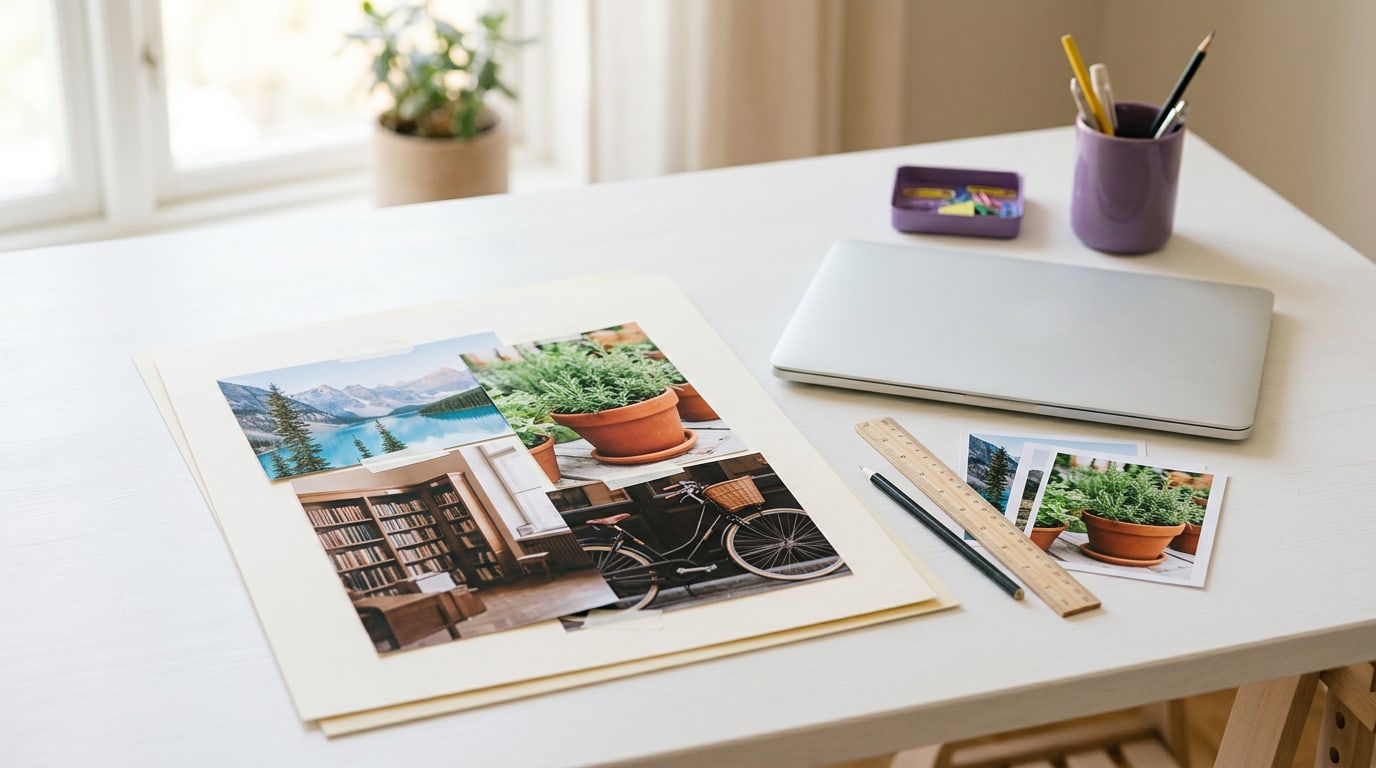
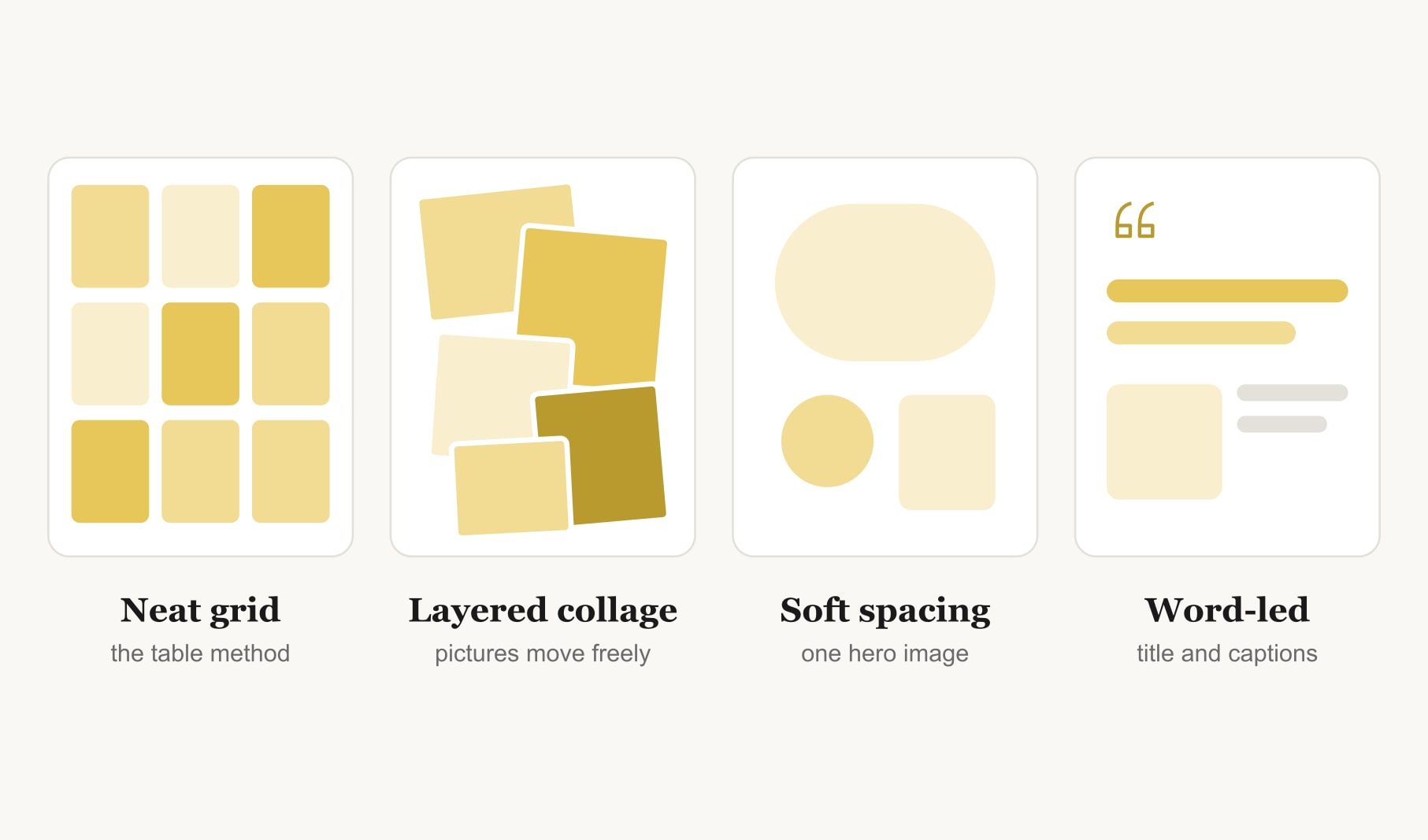
Most guides use Word as a grid machine: insert a table, drop a picture in each cell, done. That works, and it is the right choice if you love neat rows. But if you want something that feels more like a hand-made collage, there is another route. This is how to create a vision board on Word as a freeform, layered page, where every picture moves wherever you drag it and the result looks closer to a scrapbook than a spreadsheet.
Give yourself about fifty minutes, a folder of six to nine photos and the goals you want the board to hold.
What do you need for how to create a vision board on Word?
A computer with Word or another word processor, a folder of photos and a printer, or a print shop for larger sizes. Save your photos into one folder before you start, so you are not hunting while you build. Your own photos look best and print sharply. If you are short on images, a set of vision board images to print can fill the gaps for goals you have no photo for yet.
How do you create a vision board on Word, step by step?
1. Set up a landscape page with a soft background
Open a blank document, switch the page to landscape and narrow the margins. If you like, choose a pale page colour such as cream or soft grey. It gives the collage a warm base, though plain white works too.
2. Add a large title text box
Insert a text box near the top and type your word for the year, or a short title. Make it big and simple. Remove the box outline so the word sits cleanly on the page.
3. Insert your pictures and let them move freely
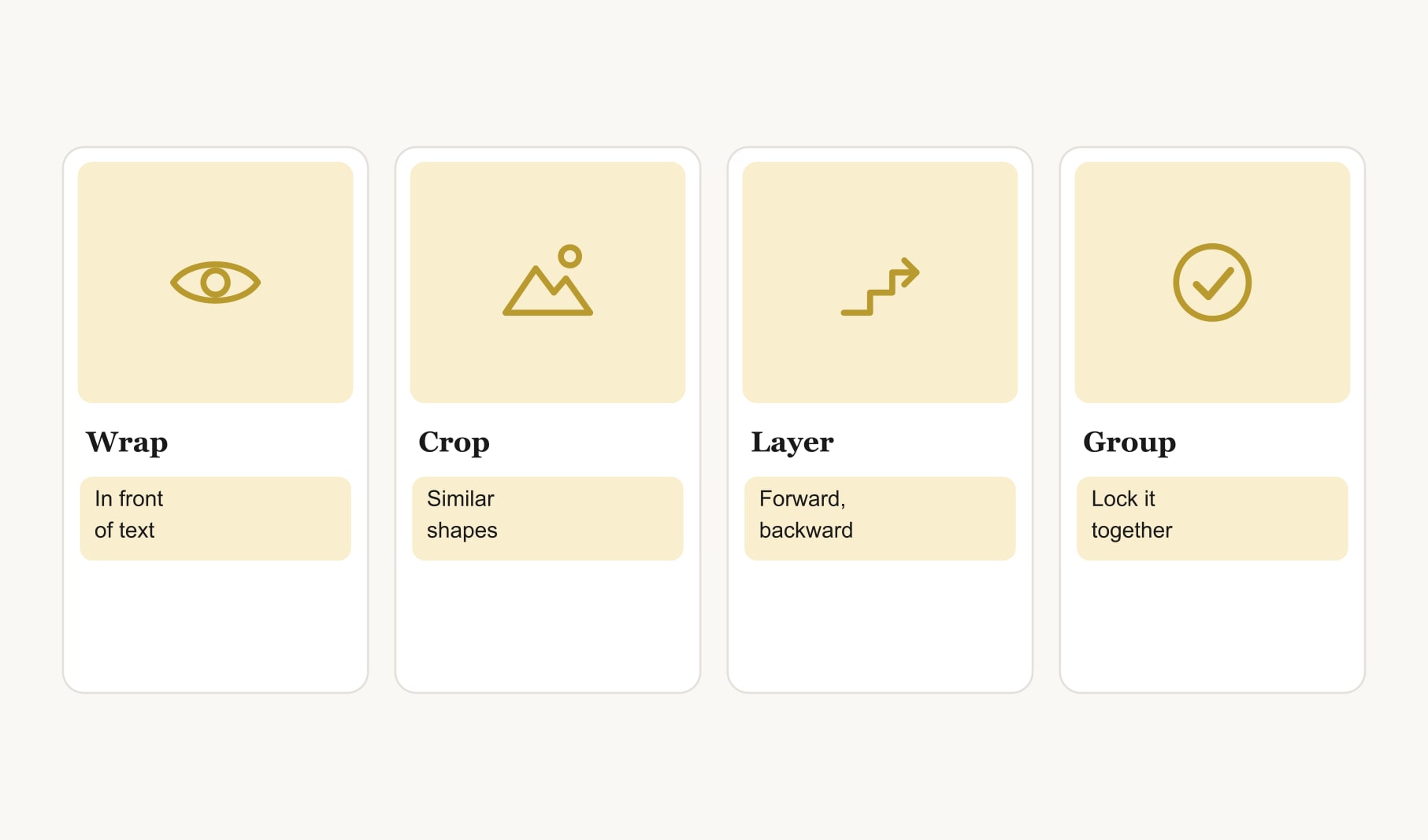
This is the step that changes everything. Insert a picture, then open its wrapping options and choose In Front of Text. Now you can drag it anywhere, rotate it slightly and overlap it with others. Without this step, Word handles every picture like a line of text and the collage keeps jumping around.
4. Crop the pictures to similar shapes
Use the crop tool so your pictures share a shape, all square or all portrait. Mixed shapes can work in a collage, but similar shapes keep it from looking chaotic.
5. Layer and overlap for a collage
Drag the pictures into a loose arrangement, overlapping the edges a little. Put the goal you care about most near the centre and slightly larger. Use bring forward and send backward to decide which picture sits on top. Tilt one or two by a few degrees for a hand-made feel, but keep the rest straight so the page still reads calmly.
6. Add caption text boxes with a date and step
Place a small text box on or just under each picture. Type the goal, a month and a first step: “Lake swim, July, find a club.” A white box with a little padding stays readable even on top of a busy photo.
7. Group everything
Once you are happy, select every picture and text box and group them. Grouping locks the layout together, so nothing shifts when you save, print or open the file next year.
8. Save as a PDF and print
Save the document as usual, then save a PDF copy for printing. Print on thick matte paper, which avoids glare. For something larger than a standard sheet, take the PDF to a print shop. Hang it where you pass every day.
Grid or collage: which Word board should you make?
Choose the grid if you like order, want to update one square at a time or plan to reuse the file every year; my guide to the printable vision board template has ready grids too. Choose the collage if you want the board to feel expressive and personal. A good middle path is a loose grid: pictures freed to move, but lined up in rough rows.
How do you choose photos for a Word collage?
Choose photos with one clear subject each, because overlapping edges hide some of every picture. A lake with a single boat survives a slight overlap; a busy street scene turns to noise. Keep the colours in the same family where you can, all warm or all cool, so the page feels like one piece. And pick one hero image for your most important goal, a little larger than the rest, so your eye knows where to land.
What does a finished Word collage board look like?
A cream landscape page with the word “Open” in a large serif across the top. Below it, seven photos in a loose cluster, edges touching and slightly overlapping: a mountain lake in the centre, larger than the rest, with a pot of herbs, a library corner, a bicycle, a train window, a guitar and a sunny balcony around it. Two of them tilt gently. A small white caption sits on each with a goal, a month and a first step. It looks hand-made, but every piece lines up when you look closely.
What are common mistakes with Word collage boards?
Forgetting the wrapping step, so pictures jump around. Overlapping so much that goals disappear. Tiny captions you cannot read from across the room. And not grouping before printing, which can leave a picture stranded on page two. Each one is easy to fix once you know to look.
How do you keep a Word vision board working?
Look at it daily and review it weekly. Note small wins somewhere you will see them; a gratitude tracker for your vision board is a gentle way to notice what is already going well. Every few months, ungroup the collage, swap finished goals for new ones and print a fresh copy.
Keep reading
How to create a vision board on word: your questions
Set a landscape page, add a title text box, then insert your pictures and set their wrapping to In Front of Text so they move freely. Crop them to similar shapes, layer them into a collage, add small captions with a month and first step, group everything and print.
Pictures jump around a Word vision board because they are set to sit in line with text. Change each picture to In Front of Text in its wrapping options. Then you can drag, overlap and rotate them freely, and group them once the layout feels right.
Yes. A collage vision board in Word only needs pictures set to move freely, slight overlaps and a few gentle tilts. Keep captions in small white text boxes so they stay readable, and group everything at the end so the collage holds its shape when printed.
Save a PDF copy of your Word vision board and print it on thick matte paper, which avoids glare and feels sturdy on the wall. For a larger board, take the PDF to a print shop and ask for a bigger sheet with full colour.
Six to nine pictures suit a single landscape page for a Word vision board. Fewer pictures give each goal more space and a readable caption. If you have more goals than that, make a second page for later goals rather than shrinking every picture.
Insert a small text box on or under each picture on your Word vision board and type the goal, a month and a first step. Give the box a white fill with a little padding, so the caption stays readable even on top of a busy photo.
Keep your vision board alive
A board built in your browser resets when you close the tab. Vision Boardly saves your boards, reminds you as each vision date arrives, and tracks the habits and moods moving you toward them.
Get Vision Boardly Free