Vision Board Template Word
Vision Board Template Word
No design software needed. A simple table in a word processor makes a clean, printable board you can reuse every year.
To make a vision board template in Word, set a landscape page, add a title, insert a table of three columns as your grid, place one image in each cell, type a caption with a month and first step beneath each, hide the borders, then save it as a reusable template and a PDF for printing.

If you searched for a vision board template Word can open, here is the good news: you can build one yourself in under an hour. You do not need design software to make a lovely board. A word processor you already have can produce a clean, printable layout. This guide shows you how to build your own vision board template in Word, step by step, using a simple table as the grid. I do not supply a file here; building it yourself takes minutes and lets you shape it exactly how you like.
Why build a vision board template Word can print?
Because it is familiar, it prints cleanly on standard paper and you can reuse it every year. Microsoft Word and similar word processors handle images, tables and text well enough for a tidy grid board, and most people already know the basics.
Step 1: How should you set up the page?
Open a blank document and set the orientation to landscape; a wide page suits a board better than a tall one. Narrow the margins so the images have room. A standard letter or A4 sheet works; for a bigger board, print at a shop on a larger size.
Step 2: What goes at the top?
A single line: your word for the year or a short title, in a large, clear font. Centre it. Leave a little space beneath it before the grid.
Step 3: Why use a table as the grid?
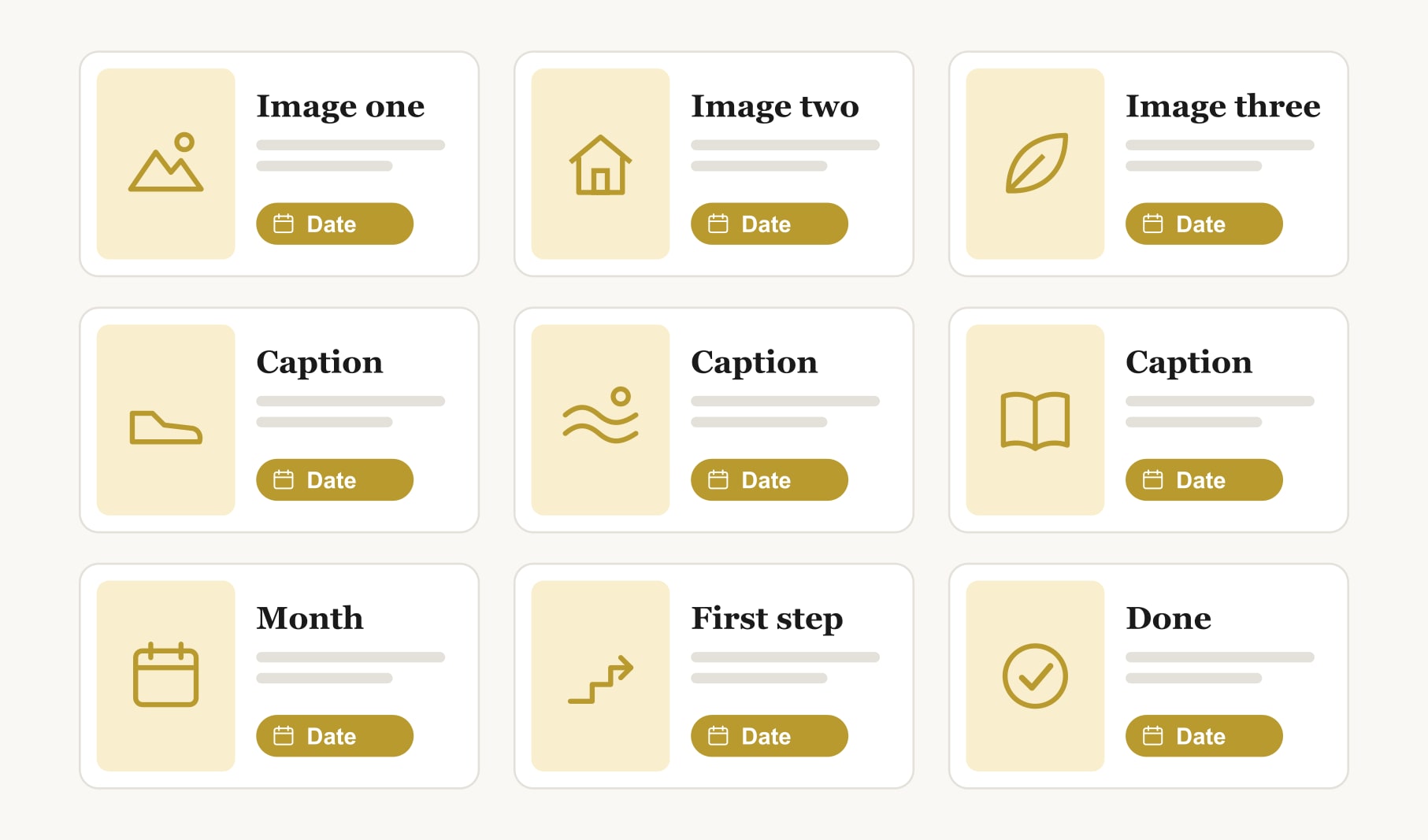
A table keeps every image aligned without fiddly positioning. Insert a table of three columns and two rows for six goals, or three rows for nine. Each cell holds one image and its caption.
Step 4: How do you add images?
Click into a cell, insert a picture from your computer, and resize it to fill the width of the cell. Keep images the same shape, all landscape or all square, so the grid looks even. Your own photos work beautifully.
Step 5: What goes in each caption?
Beneath each image, type three short things: the goal, a month and a first step. “Walk by the river. March. First step: lay out shoes tonight.” Use a small, simple font and keep captions to one or two lines.
Step 6: How do you hide the table lines?
Select the table and remove the borders. The images now float cleanly on the page, with the grid still holding them in place behind the scenes.
Step 7: How do you save it as a template?
Save one copy as a template file you can reuse, and export another as a PDF for printing. Next year, open the template, swap the images and captions, and you have a fresh board in minutes.
Step 8: How should you print it?
On thick matte paper, which avoids glare and feels sturdier on a wall. A print shop gives richer colour than most home printers. Pin it where you pass daily, and take a photo for your lock screen too.
What does a finished Word board look like?
A landscape sheet with “Steady” across the top in a warm serif. Beneath it, six photos in a three by two grid, all landscape-shaped: a river path, a sunny kitchen, a guitar, a garden, a coastal town and a reading chair. Under each, two small lines: the goal and month on one, the first step on the other. Even white margins, no borders, printed on thick cream paper. It looks calm, deliberate and far more polished than people expect from a word processor.
What are common mistakes with Word boards?
Mixing portrait and landscape images, which makes the grid look uneven. Letting pictures float freely instead of anchoring them in the table. Captions in tiny type. And printing on thin paper, which curls on the wall. Each is easy to avoid once you know to watch for it.
What if you want more design control?
Word handles simple grids well, but freeform collages are easier in dedicated tools. My guide to the best vision board software 2027 covers what to look for, and my guide to vision board layout has grid, zone and timeline ideas you can recreate in any program.
How do you keep the printed board working?
Review it weekly, tick off first steps and update captions at a monthly review. A goal tracker for your vision board keeps the steps visible between reprints. And if you want something even quicker, see my vision board ideas easy list.
Keep reading
Vision board template word: your questions
Set a landscape page, add a title line, insert a table of three columns as your grid and place one image in each cell. Type a caption with a month and first step beneath each image, hide the table borders, then save it as a template and a PDF.
A table keeps every image aligned without fiddly positioning, which is the hardest part of making a vision board in a word processor. Each cell holds one image and its caption, and hiding the borders makes the finished board look clean and even.
A standard letter or A4 sheet in landscape orientation works well for a Word vision board and prints on any home printer. For a larger board, export a PDF and print it at a shop on a bigger sheet of thick matte paper.
Six images in a three by two table suit most Word vision board templates, while nine images in a three by three table work for a busier board. Keep all images the same shape so the grid looks even and the board stays easy to read.
Save a copy of your Word vision board as a template file. Next year, open it, swap in new images and update the captions with new goals, months and first steps. A fresh board takes only minutes once the template exists, which makes it a lovely yearly ritual.
Either works. A home printer is quick for a standard sheet, while a print shop gives richer colour and can print larger sizes. Thick matte paper looks best for a vision board because it avoids glare and feels sturdier on the wall.
Yes. Any word processor that handles tables and images can make a vision board using the same steps: a landscape page, a table grid, one image per cell and captions beneath. The menu names may differ slightly, but the method stays the same.
Keep your vision board alive
A board built in your browser resets when you close the tab. Vision Boardly saves your boards, reminds you as each vision date arrives, and tracks the habits and moods moving you toward them.
Get Vision Boardly Free