How to Make a Vision Board App
An app can do more than hold your pictures. Here is how to set one up so the board keeps working after you close it.
To make a vision board in an app, set your language and preferences, start a board by hand or with AI, and add one image per goal. Give every vision a date and caption, turn on reminders, link the habits and tasks behind each goal, then check in weekly to log progress and reflect.
When people search for how to make a vision board app work, they usually mean one thing: how do I build a board inside an app so it actually helps? That is what this guide covers. The difference between a board on your wall and a board in an app is that the app can carry each goal forward for you, with dates, reminders and the small habits behind every picture. Set it up well in the first thirty minutes and it keeps working for months.
I will use the same order I follow myself: preferences first, then the board, then the parts that keep it alive.
What do you need for how to make a vision board app work for you?
Three to five goals written down, a few photos from your camera roll and about half an hour. Write the goals first. An app makes it easy to start adding pictures straight away, and starting with pictures instead of goals is how boards end up pretty but vague. If you need help choosing, look at the vision board app page for the kind of goals people plan this way.
How do you make a vision board in an app, step by step?
1. Set your language and personal preferences
Start in settings. Choose the language you think in, because goals written in your first language feel closer. If your practice includes prayer, scripture or a particular tradition, set your faith and belief preferences now so the affirmations and devotions you see later fit you. A board that speaks your language, in every sense, is one you will open.
2. Start a board by hand or with AI
You have two good routes. Build by hand if you already know which images you want. Or describe your goals in a sentence or two and let AI draft a first board, then edit it until every square feels like yours. The AI vision board generator shows what that first draft looks like.
3. Choose a board accent colour
Pick one colour for the board. It shows up on small things like date chips and progress marks. It sounds minor, but a colour you love makes the board feel personal, and each board can have its own.
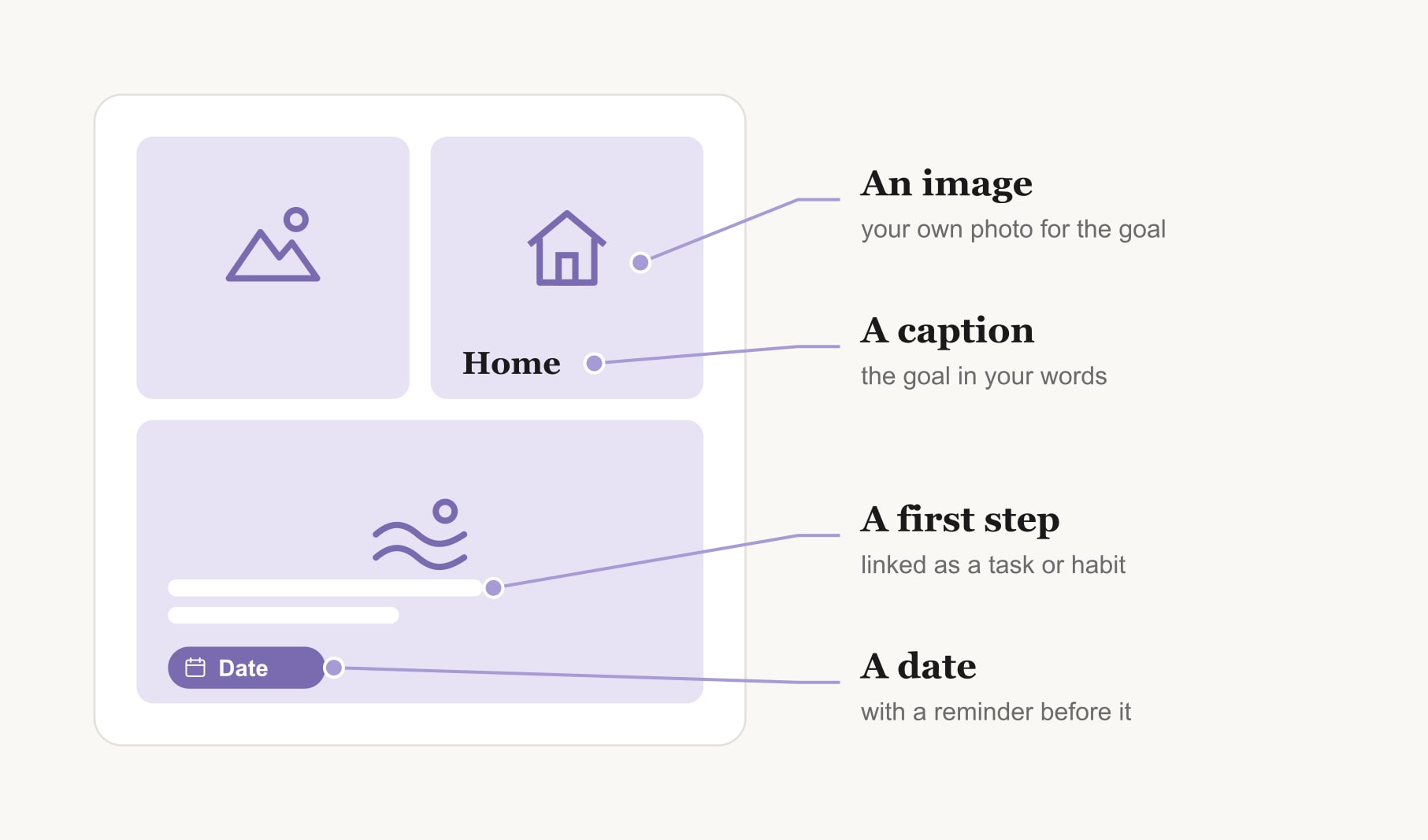
4. Add one vision per square
One goal, one image. Use your own photos where you can, because they carry meaning that a stock picture never will. Keep the board to three to nine visions, so each one gets real attention.
5. Give every vision a date and caption
Under each image, add a target date and a short caption that includes the first step. “Course, March, enrol this week.” This single line turns the board from a wish list into a plan.
6. Turn on reminders
Set a reminder a little before each vision date, plus one weekly nudge to open the board. Choose a time you are usually calm, like your morning coffee or the train home. Fewer, well-timed reminders work better than many.
7. Link habits, tasks and affirmations
This is where an app pulls ahead of paper. Attach the small daily habit behind each vision, such as a ten minute walk or two pages of reading. Add one-off tasks, like booking the course. Choose an affirmation for the vision you find hardest, or write your own. For extra practice, the affirmation generator suggests lines you can adapt.
8. Check in every week
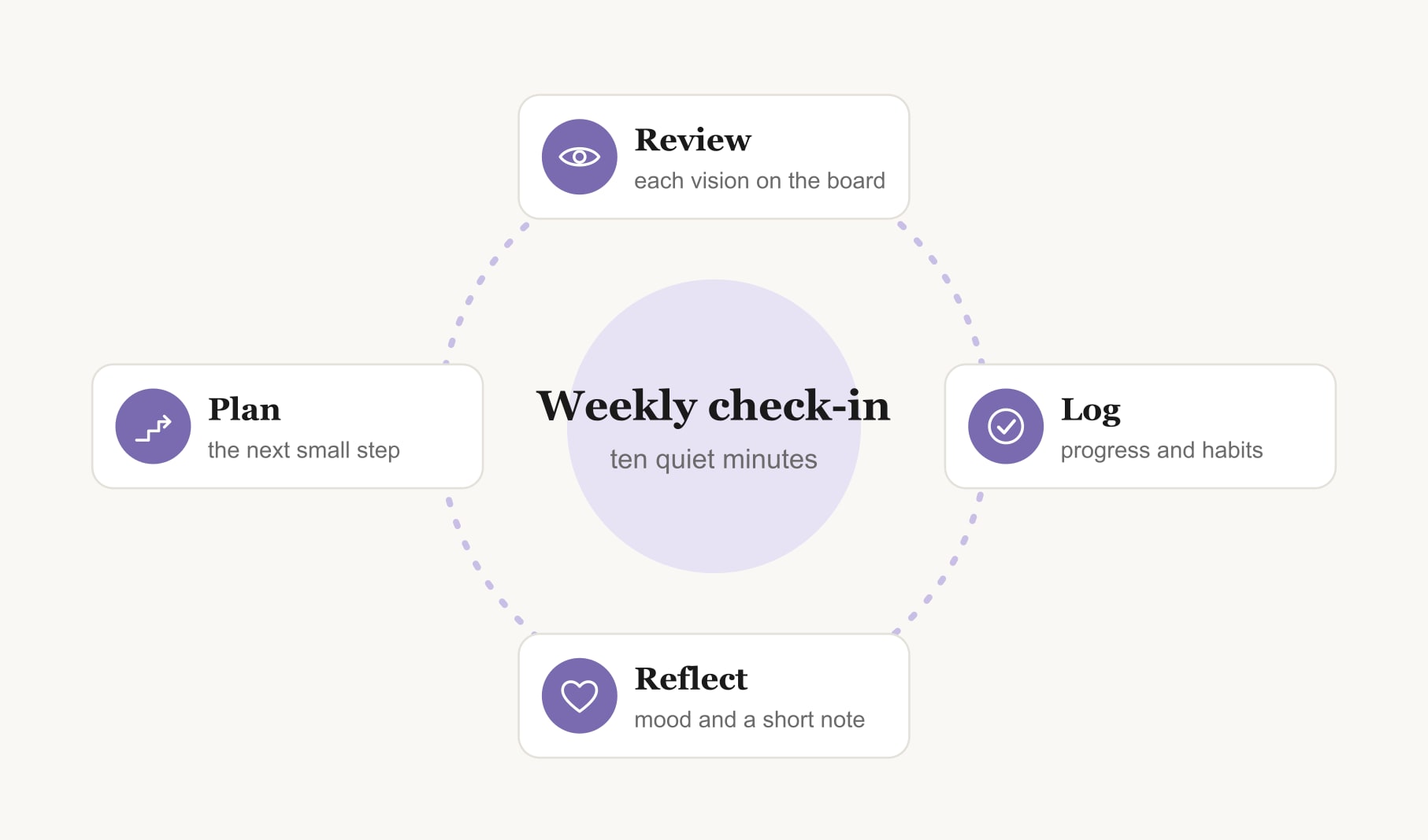
Once a week, open the board and go through each vision. Log what moved. Note your mood. Write or record a short reflection; voice journaling is lovely here if typing feels like a chore. Then choose the next small step. If manifestation is part of your practice, a manifestation tracker keeps the intentions and the actions side by side.
What mistakes should you avoid when you make a vision board in an app?
Too many boards at once is the big one. Start with a single board and get the weekly habit going before you make another. The second is skipping dates, because an undated vision never feels urgent. The third is turning every notification on and then switching them all off a week later. Choose a few and keep them.
Which goals should go on your first app board?
Pick the goals you want to work on in the next three to six months, not the next ten years. Long-range dreams are lovely, but they make poor first visions because the first step is hard to see. Mix one easy win, something you could finish within a month, with two or three bigger goals. The quick win teaches you the weekly habit and gives you an early tick, which makes the harder visions feel possible. You can always add a second board later for the long view.
Can you make an app board alongside someone else?
Some goals are better with company. A couple planning a move, a family planning a trip or friends training for the same walk can each add the same vision to their own board and check in together once a week. Keep personal visions private, talk about the joint ones over dinner, and cheer each other on when a first step gets ticked off.
How do you know the app board is working?
Look for small signs. You open it without being reminded. First steps get ticked off. Your weekly reflections start mentioning progress rather than intentions. Dates move occasionally, which is fine, because it means you are paying attention. If none of that happens after a month, simplify: fewer visions, one habit each, one reminder a week.
Keep reading
How to make a vision board app: your questions
Set your language and preferences, start a vision board by hand or with AI, and add one image per goal. Give every vision a date and caption, turn on reminders, link the habits and tasks behind each goal, then check in once a week to log progress and reflect.
Build your vision board by hand if you already know which images you want. Use AI if you are stuck or short on time, then edit the draft until every square feels personal. Many people start with AI and swap in their own photos over the first week.
Three to nine visions suit an app vision board, and five is a comfortable start. Each vision gets its own image, date, caption and habit, so a smaller board means each goal gets real attention. Add a second board later once the weekly habit feels easy.
Set one reminder a little before each vision date and one weekly reminder to review the whole vision board. Pick a calm time of day, such as a morning coffee. A few well-timed reminders keep you engaged, while too many usually get switched off within a week.
A paper vision board sits on your wall and reminds you by being seen. An app vision board travels with you and can attach dates, reminders, habits, tasks and reflections to each goal. Many people keep both: the app for tracking and a printed copy for the wall.
Check your app vision board once a week to log progress, note your mood and choose the next step for each vision. Update images and dates whenever a goal changes or finishes. Rebuild the whole board at a natural fresh start, such as a birthday or a new year.
Keep your vision board alive
A board built in your browser resets when you close the tab. Vision Boardly saves your boards, reminds you as each vision date arrives, and tracks the habits and moods moving you toward them.
Get Vision Boardly Free