How to Make a Digital Vision Board
A digital board goes everywhere your phone does. Here is how I build one, from finding images to setting it as a lock screen.
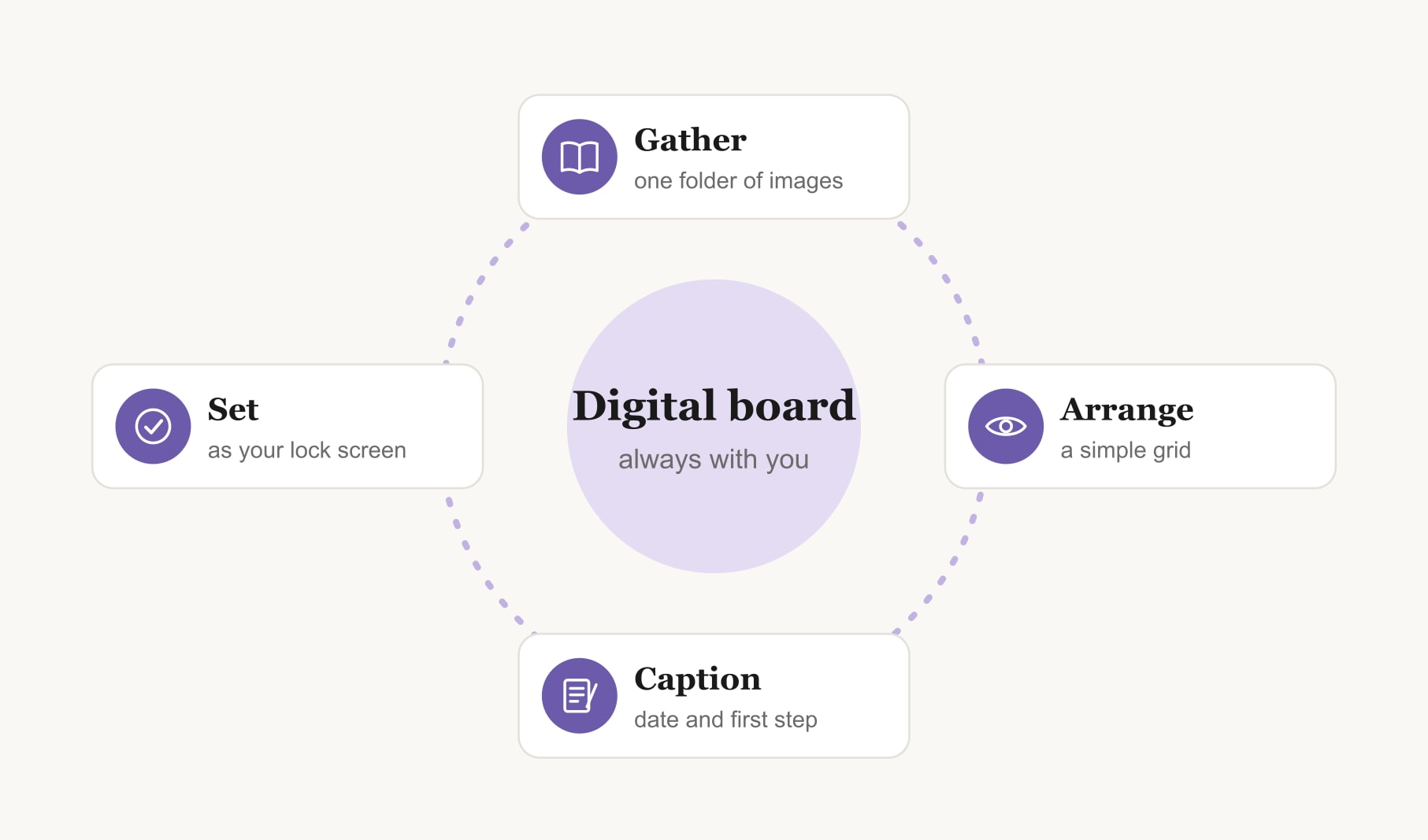
To make a digital vision board, choose three to five goals, save an image for each into one folder, then arrange them in a free browser builder, a slides app or a photo collage app. Add a date and first step to each image, save the board, and set it as your phone or desktop background.
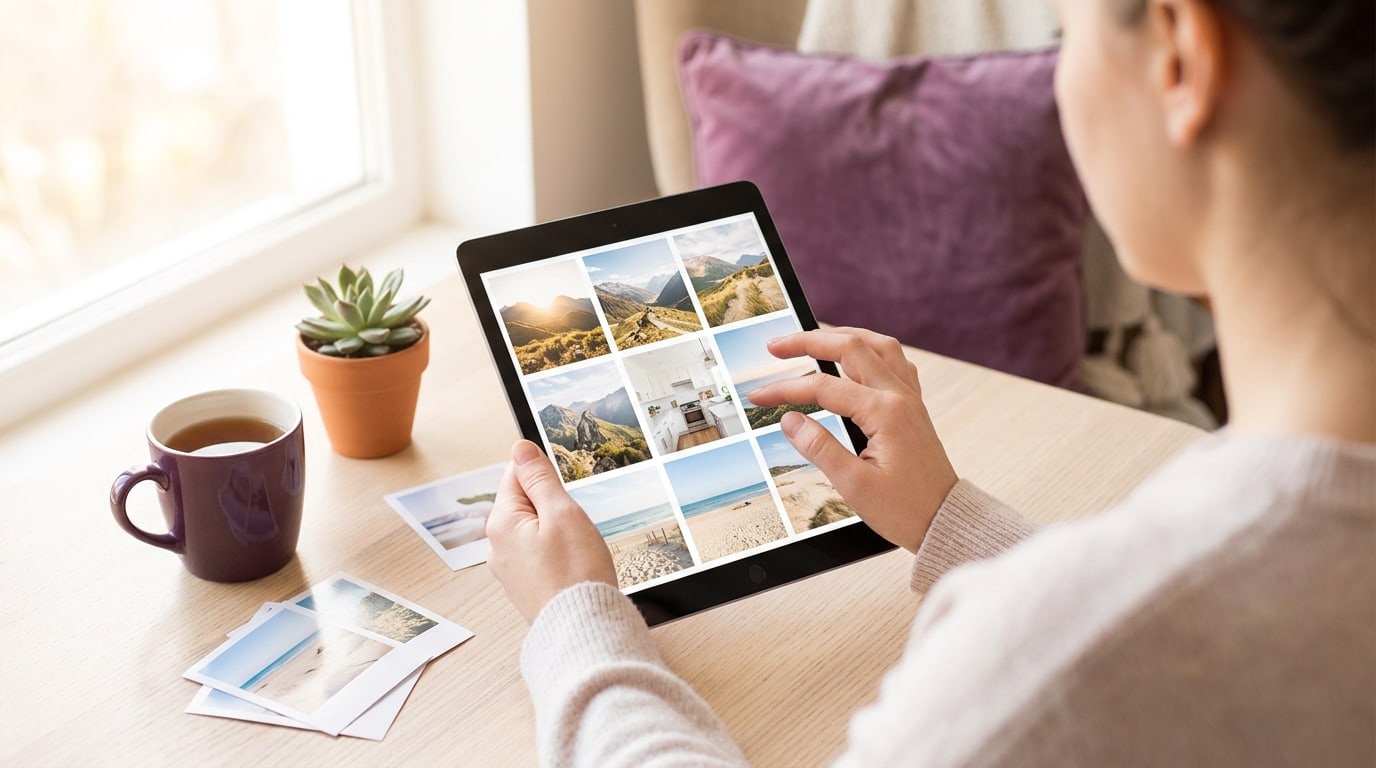
I switched to a digital vision board a few years ago and have not looked back. It lives on my lock screen, so I see it dozens of times a day, and I can swap an image in thirty seconds when a goal changes. If you want to know how to make a digital vision board, the good news is that it is quicker than the paper kind, and you already own the equipment.
The thinking is the same one I use for paper boards, covered in my guide on how to make a vision board. What changes is where you build it and where it lives.
What do you need to make a digital vision board?
A phone, tablet or computer, a folder of images, and one tool to arrange them. That tool can be a browser builder, a slides or presentation app, a design app or a photo collage app. Pick whatever you already know how to use. Fancy features matter much less than being able to swap an image easily.
Want to know how to make a digital vision board, step by step?
1. Choose three to five goals
Same as a paper board: write one sentence per goal before you touch an image. “Finish my design course by June” is a goal. “Be more creative” is a mood. Keep going until each one is specific enough to picture.
2. Gather images into one folder
Make a folder on your device called “vision board”. Save images from photo sites, your camera roll or screenshots. Your own photos are powerful here, and free stock photo sites cover the rest. If you plan to share your board publicly, stick to your own photos or openly licensed images, such as those released under Creative Commons licences.
3. Pick your layout and size
Decide where the board will live first, because that sets the shape. A phone lock screen wants a tall layout, roughly nine by sixteen. A desktop background wants a wide one. A simple grid of six or nine squares reads best at small sizes, which is why I prefer it to a loose collage on a screen. If you want a head start, a digital vision board template gives you the grid ready-made.

4. Arrange your images
Drop your images into the grid and move them around until the most important goal sits where your eye lands first. On a phone that is usually the middle, just below the clock. Leave a little breathing room between images so each one reads on its own.
5. Add dates and first steps
This is what makes a digital board more than a nice wallpaper. Add a short caption under each image with a target date and the first step. Keep the text short, because it will be small on a phone. “Lisbon, spring, book flights” says plenty.
6. Save it and set it as your background
Save the finished board as an image. Then set it as your lock screen, home screen or desktop background, which on most devices lives in the wallpaper settings. I use the lock screen, because it is the screen I see before I have scrolled into anything else.
Which tools can you use to make a digital vision board?
Almost anything that arranges pictures will do. A browser builder is the quickest, because the grid is ready and you save the result as an image. Slides or presentation apps work well too: set the slide to phone size, drop in photos and export as an image. Design apps give you the most control over fonts and spacing. Photo collage apps on your phone are the fastest for a lock screen. Even a notes app with a few pasted images can work in a pinch. Choose the tool that makes swapping an image feel effortless, because you will do it often.
How do you keep a digital vision board up to date?
That is the joy of digital. When a goal is done, swap the image and celebrate. Once a week, glance at each goal and ask what moved. I note small wins in a goal tracker for your vision board, so the board stays clean and the progress lives somewhere else. Keep old versions in a folder too. Scrolling back through last year’s boards is one of my favourite small joys.
Is a digital vision board as good as a paper one?
It is different, not worse. Paper sits in your space and you touch it while making it, which some people find more meaningful. Digital is with you everywhere and easy to change. Plenty of people do both: a paper board at home and a photo of it on their phone. If you specifically want to build and save a board in a browser tab, here is how to make a vision board online.
Keep reading
How to make a digital vision board: your questions
The easiest way to make a digital vision board is to use a free browser builder with a ready grid. Upload one image per goal, add a date and caption to each, save the board as an image and set it as your phone or desktop background.
Yes, you can make a digital vision board entirely on your phone. Save images to one album, arrange them in a browser builder or a collage app, add short captions and set the finished image as your lock screen, so the board is always with you.
Size a digital vision board for where it will live. A phone lock screen needs a tall layout, roughly nine by sixteen, while a desktop background needs a wide one. A simple grid of six to nine images reads best at small screen sizes.
Use your own photos, free stock photo sites and screenshots of images that inspire you. For a private digital vision board that is what most people do. If you plan to share it publicly, stick to your own photos or openly licensed images.
Update a digital vision board whenever a goal is done or stops feeling like yours, and give it a quick weekly glance to check progress. Because swapping an image takes seconds, a digital board is easy to keep current throughout the year.
Neither is better; they suit different habits. A digital vision board travels with you and is easy to change, while a paper board sits in your space and feels more tactile. Many people keep both, with a photo of their paper board on their phone.
Yes, but keep it short. A target date and a few words about the first step under each image make a digital vision board far more useful. Text becomes small on a phone screen, so a single short line per image works best.
Keep your vision board alive
A board built in your browser resets when you close the tab. Vision Boardly saves your boards, reminds you as each vision date arrives, and tracks the habits and moods moving you toward them.
Get Vision Boardly Free