How to Create a Vision Board on My Phone
Your phone already holds your photos, an editor and a screen you check all day. Here is how to turn those into a board.
To create a vision board on your phone, make an album for your goal photos, crop each one in your phone editor, then build the board in a phone-friendly builder or vision board app. Add a date and caption to each image, save the board to your photos and set it as your lock screen.
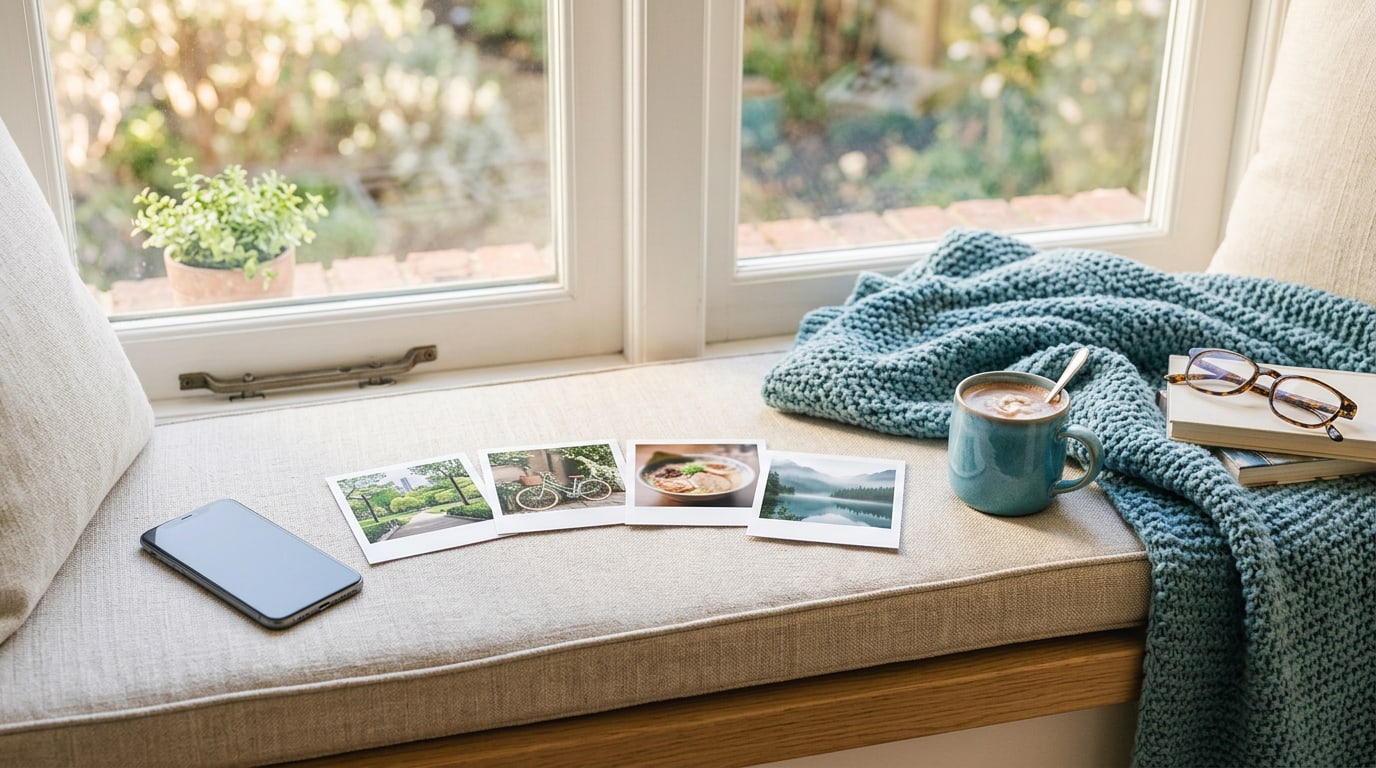
If you have been wondering how to create a vision board on my phone, here is some reassurance: your phone is already the best tool you own for it. It holds your photos, it has a photo editor built in, and it has a screen you look at many times a day. In this guide I will walk you through the phone-only method I suggest to anyone who never quite gets round to a paper board. It takes about thirty five minutes, sitting on the sofa.
What do you need for how to create a vision board on my phone?
Your phone, three to five goals and the photos already in your camera roll. You will also need somewhere to arrange the images: a board builder that works in your phone’s browser, or a vision board app. Write the goals down first, even in your notes app. Starting with goals rather than pictures keeps the board focused.
How do you create a vision board on your phone, step by step?
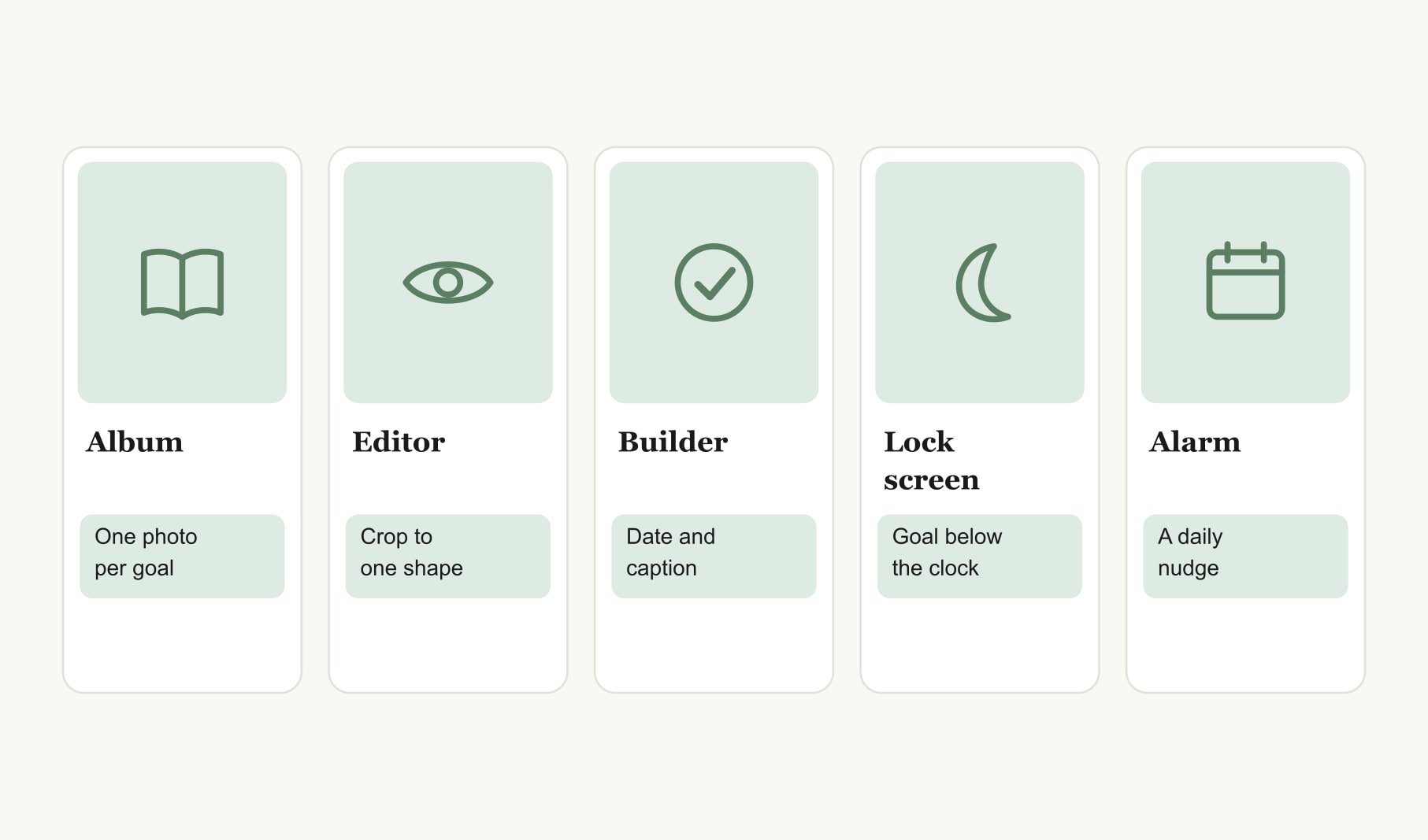
1. Make an album called Vision
Open your photos and create a new album. Call it Vision, or your word for the year. Every image for the board goes here, so you are never scrolling through thousands of photos while you build.
2. Fill the album with one photo per goal
Go through your camera roll with your goals beside you and add one photo per goal to the album. Look for feelings as well as subjects: a sunny table for a calmer home, a muddy trail for more time outdoors. If a goal has no photo, take one this week of a stand-in, like your trainers by the door.
3. Crop each photo in your phone editor
Open each photo in the album and use the built-in editor to crop it to the same shape, square or portrait. Matching shapes make the finished board look calm. Brighten any photo that looks much darker than the rest.
4. Build the board on your phone
Open a builder in your phone’s browser or a vision board app. The phone vision board builder opens with a ready grid; tap any square to add a photo from your Vision album. If you want a layout shaped for the screen, a vision board template for your phone has the tall frame ready.
5. Add a date and caption to each image
Under each photo, type two or three words for the goal, a month and a first step. “Lake swims, June, find a club.” Keep it short, because a phone screen makes text small. This line is what turns your lock screen into a plan.
6. Save the board to your photos
Save the finished board as an image. It lands back in your camera roll, ready to use. Move it into the Vision album too, so every version of your board lives in one place.
7. Set it as your lock screen
Open your wallpaper settings and choose the board. Before you confirm, check where the clock falls. Your main goal should sit in the middle, below the time, not underneath it. If it is covered, go back and leave the top third of the board calm, like a patch of sky.
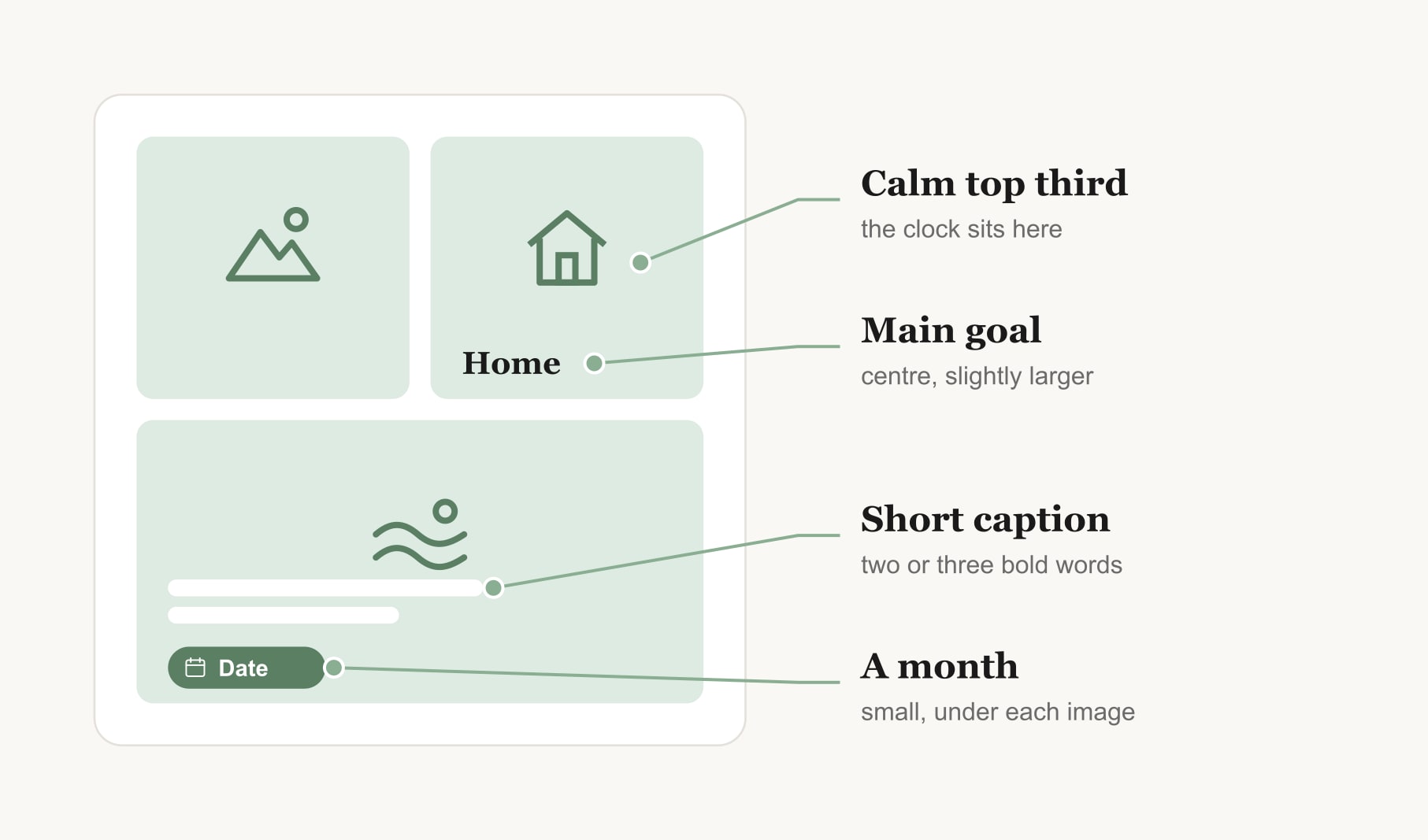
8. Add a daily nudge
Set one gentle daily alarm or calendar reminder, at a time you are usually calm, labelled with a question like “What is one step today?” When it goes off, look at the board and pick one thing. To see your steps add up, a habit tracker for your vision board works in the same phone browser.
Should you use your lock screen or home screen?
I prefer the lock screen, because it is the first thing you see before anything else grabs your attention. The home screen can work too, but icons cover most of it. Some people use both: the full board on the lock screen and a single image for their main goal on the home screen.
Which works better on a phone: a browser builder or an app?
A browser builder is quickest to start and needs nothing installed. An app keeps your boards saved, reminds you as dates arrive and tracks progress. If you are on an iPhone, the vision board app for iPhone page shows what that looks like; on Android, the vision board app for Android page does the same.
What photos work best on a phone board?
Simple ones. A phone shows your board at the size of a playing card, so choose photos with one clear subject and plenty of contrast: a single red bicycle against a white wall reads better than a crowded market. Close-ups work well. Avoid photos with words or numbers in them, because they turn to clutter when small. And pick one photo that makes you smile on sight for the centre spot. On a gloomy morning, that is the one doing the work.
How much time does a phone vision board take to create?
About thirty five minutes the first time: ten for the album, five for cropping, ten to build and caption, and ten to save, set the lock screen and add the alarm. After that, updates take a couple of minutes, which is the real advantage of a phone board.
How do you keep a phone vision board fresh?
Look at it each morning, review it each week and swap any image you stop noticing. When a goal is done, replace its photo and celebrate. Keep every old board in your Vision album. Scrolling back through them at the end of the year is one of the nicest ways to see how far you have come.
Keep reading
How to create a vision board on my phone: your questions
Make an album for your goal photos, crop each one in your phone editor, then build the vision board in a phone-friendly builder or app. Add a short caption, a month and a first step under each photo, save the board to your photos and set it as your lock screen.
A phone vision board works best as a tall image, roughly nine wide by sixteen high, to match most lock screens. Keep the top third calm for the clock, place your main goal in the centre and limit the board to three to six images so each stays readable.
The lock screen suits a phone vision board best, because you see it before anything else grabs your attention. App icons cover most of the home screen. Some people put the full board on the lock screen and one image for their main goal on the home screen.
Three to six photos suit a phone vision board. A phone screen is small and most glances last a second or two, so fewer, larger images read better than a crowded grid. Keep extra goals for a second board you rotate in next month.
Swap any image on your phone vision board that you stop noticing, refresh the board when a goal finishes and pair it with a daily alarm that asks for one small step. A board that changes and connects to action stays visible far longer than one left alone.
Yes. You can make a phone vision board with a browser builder, your camera roll and the editor already on your phone. Save the finished board as an image and set it as your lock screen. An app adds saved boards, reminders and progress tracking on top.
Keep your vision board alive
A board built in your browser resets when you close the tab. Vision Boardly saves your boards, reminds you as each vision date arrives, and tracks the habits and moods moving you toward them.
Get Vision Boardly Free