Apps for Making a Vision Board
People make boards in five very different kinds of app. Knowing which kind you need saves you from rebuilding your board later.
Apps for making a vision board fall into five kinds: photo collage apps for quick lock screen grids, design apps for polished prints, slide apps for flexible layouts, notes and pinboard apps for collecting, and dedicated vision board apps that add dates, reminders and tracking. Choose the kind that matches how you will use your board.
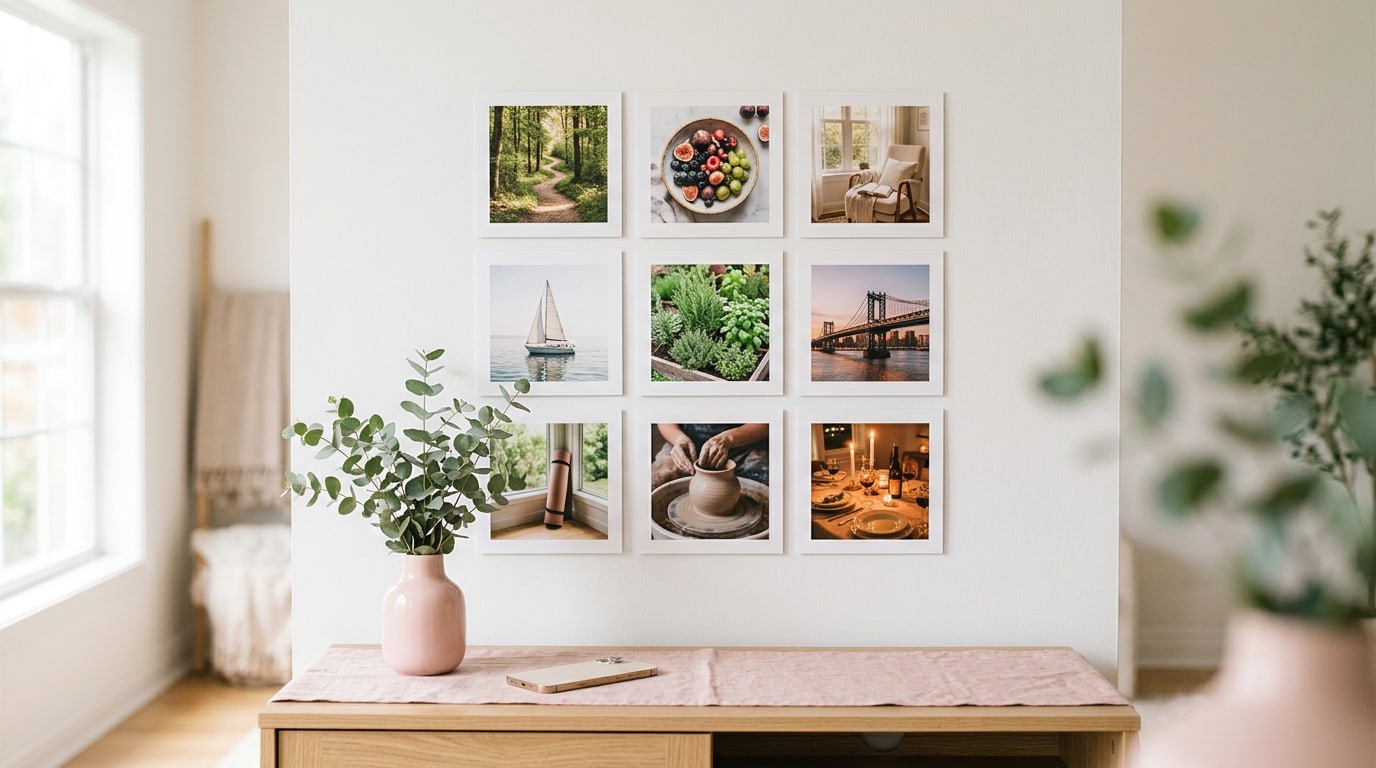
When people ask me about apps for making a vision board, they often expect a list of names. I would rather give you something that lasts longer: a map of the five kinds of app people actually use. Each kind does one job brilliantly. Knowing which job you need done is how you pick an app you will still be opening months from now, rather than one you abandon after the first evening.
Here is the map, what each kind is best at, and how to match one to the way you will use your board.
What kinds of apps for making a vision board are there?
1. Photo collage apps
These are the quickest route to a board on your phone. You pick a grid, tap in photos from your camera roll and save the result. They are perfect for a lock screen board you can make on the bus. The board is a picture, though, so the planning part, like dates and steps, lives in your head or somewhere else.
2. Design apps
Design apps give you control over fonts, colour and spacing, and they export large files that print sharply. They suit people who enjoy the making and want a poster-quality board for the wall. Expect a little learning at the start. Like collage apps, they finish when the image is done.
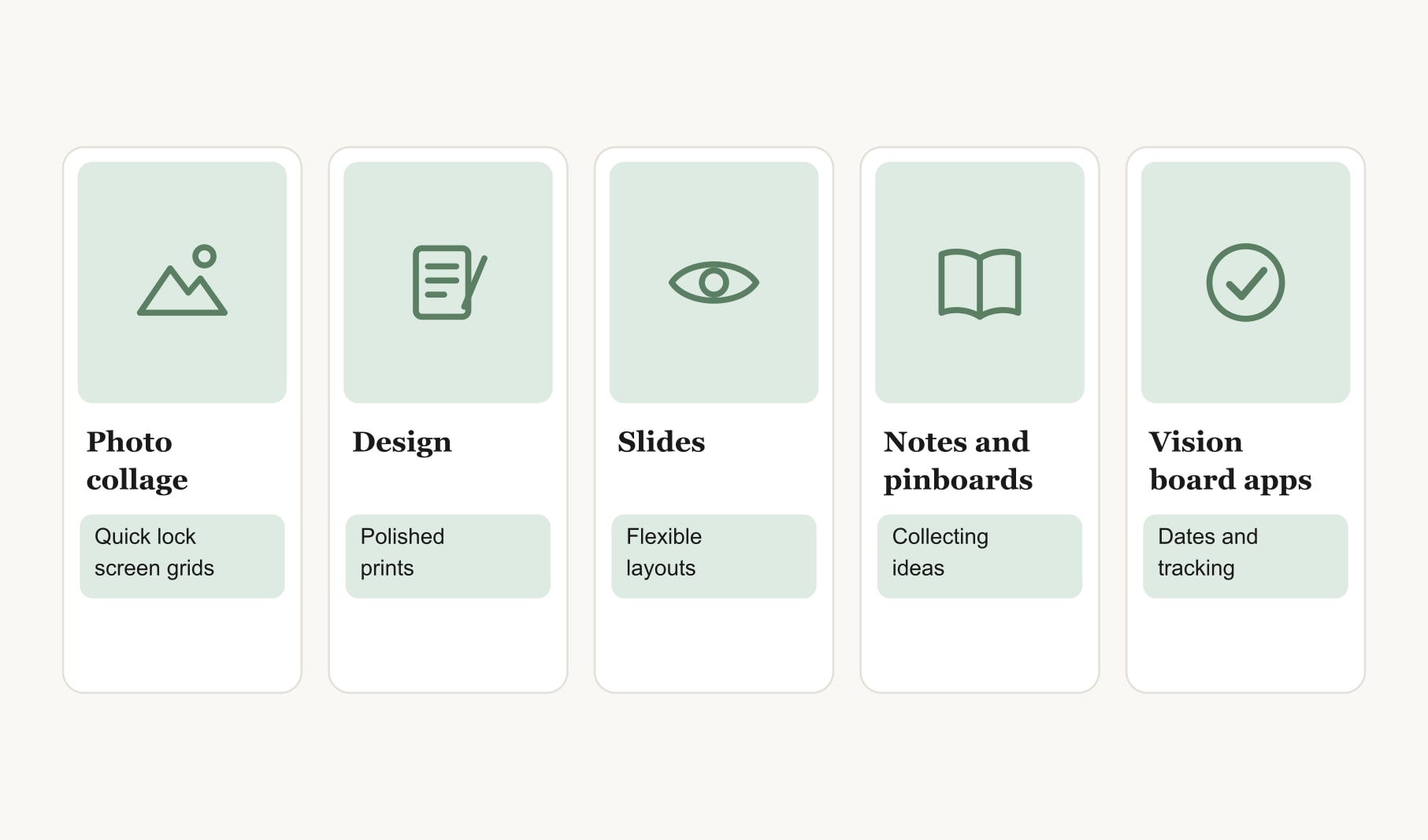
3. Slides and presentation apps
Slide apps are underrated for boards. You can set any slide size, move pictures freely and build a short deck with one goal per slide. Most people already know how they work, which makes the first board quick.
4. Notes and pinboard apps
These are wonderful for collecting: saving images, quotes and links as you come across them. As a finished board they tend to sprawl, because nothing stops you adding a hundred things. Many people use one to gather ideas and another kind of app to build the board itself.
5. Dedicated vision board apps
These are built around goals rather than pictures. Each vision on the board can carry a date, a caption and the habits behind it, and the app reminds you as dates arrive. This is the kind to choose if your boards usually look lovely and then go quiet. If you want to see the idea in action, an app to make a vision board shows how a dated, captioned grid works in practice.
Which kind of app suits the way you will use your board?
Start with where the board will live and what you want it to do. If it will live on your lock screen and you are happy remembering the steps yourself, a collage app is enough. If it will hang on your wall as a large print, a design app or a slide app makes sense. If you want the board to nudge you, track progress and hold your reflections, a dedicated vision board app is the one. If you are mostly collecting ideas, a notes or pinboard app is the right first stop.
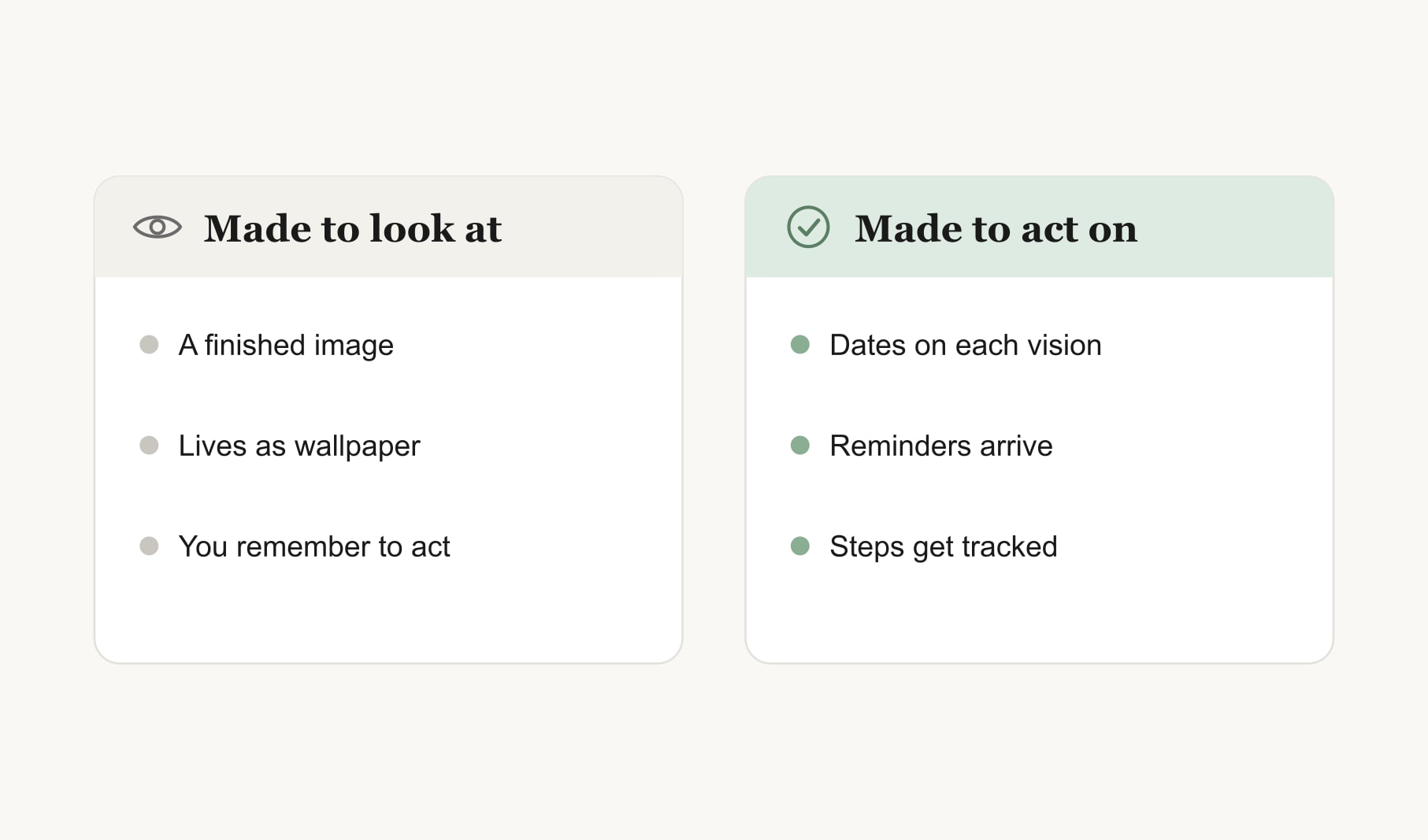
Which kind of app suits a board you want to print?
A design app or a slide app, because both let you set the page size before you start and export a large, sharp file. Build at the size you will print, use your own photos at full resolution and keep captions in a clear font. If you also want dates and reminders, keep the same goals in a vision board app on your phone, so the printed board and the plan behind it stay in step.
Can you use two kinds of app together?
Yes, and many people do. A common pairing is a pinboard app for collecting and a vision board app for the finished board. Another is a design app for a beautiful print on the wall, plus a vision board app on the phone for dates and reminders. The key is that one place holds the goals and their next steps, so you never wonder which version is current.
What should you check before choosing one of these apps?
Three quick checks. First, can you use your own photos easily? Your own images carry more meaning than anything in a stock library. Second, can every goal carry a date and a short caption? That line turns a picture into a plan. Third, will you open it without being told? Build a three goal board and use it for a week. The app you reach for without thinking is your answer. For more on what to look for, apps to create a vision board walks through the building side.
Is an app the right choice for you?
Not always. A paper board on the wall works beautifully for plenty of people. An app helps most if you carry your phone everywhere, if your goals change often, or if you tend to forget a board once it is up. If you are on the fence, try a digital vision board app for a month alongside your paper board and see which one you actually look at.
How do you keep any app board working?
The app matters less than the weekly habit. Once a week, look at each goal and ask what moved. Pick one small step for the coming days. Notice how you are feeling as you work toward each goal, too, because rest and care are part of progress; a self care tracker for your vision board keeps that side visible. Whatever kind of app you choose, this rhythm is what makes the board useful.
What does a good first app board look like?
Small and specific. Three to five visions, each with one of your own photos, a short caption in your own words, a target month and a first step. The goal you care about most sits in the centre. Nothing else. Once that board has a weekly check-in attached, you can add more visions, more boards or more polish. Start simple, then grow it.
Keep reading
Apps for making a vision board: your questions
You can make a vision board in five kinds of app: photo collage apps, design apps, slide or presentation apps, notes and pinboard apps, and dedicated vision board apps. The first four make a picture. Dedicated vision board apps also add dates, reminders and tracking to each goal.
A photo collage app or a dedicated vision board app suits a lock screen vision board. Choose a tall layout, keep the top third clear for the clock and use three to six images so each one stays readable at phone size. Add short captions with a month and a first step.
Yes. Design apps and slide apps export large files that print sharply, which suits a vision board for the wall. Use your own high quality photos, set the page size before you build, and print on thick matte paper to avoid glare and curling.
A notes or pinboard app is great for collecting vision board ideas, images and quotes. As a finished board it can sprawl, because nothing limits how much you add. Many people collect in a notes app, then build a smaller, focused vision board somewhere else.
Using two apps for a vision board works well if each has a clear job, such as one for collecting ideas and one for the finished board with dates and reminders. Keep your goals and next steps in one place, so you always know which version of the board is current.
Build the same three goal vision board in each app you are considering and use each for a week. Check that your own photos go in easily and that every goal can carry a date and a caption. The app you open without a reminder is usually the right one.
Keep your vision board alive
A board built in your browser resets when you close the tab. Vision Boardly saves your boards, reminds you as each vision date arrives, and tracks the habits and moods moving you toward them.
Get Vision Boardly Free